
My Proton Settings

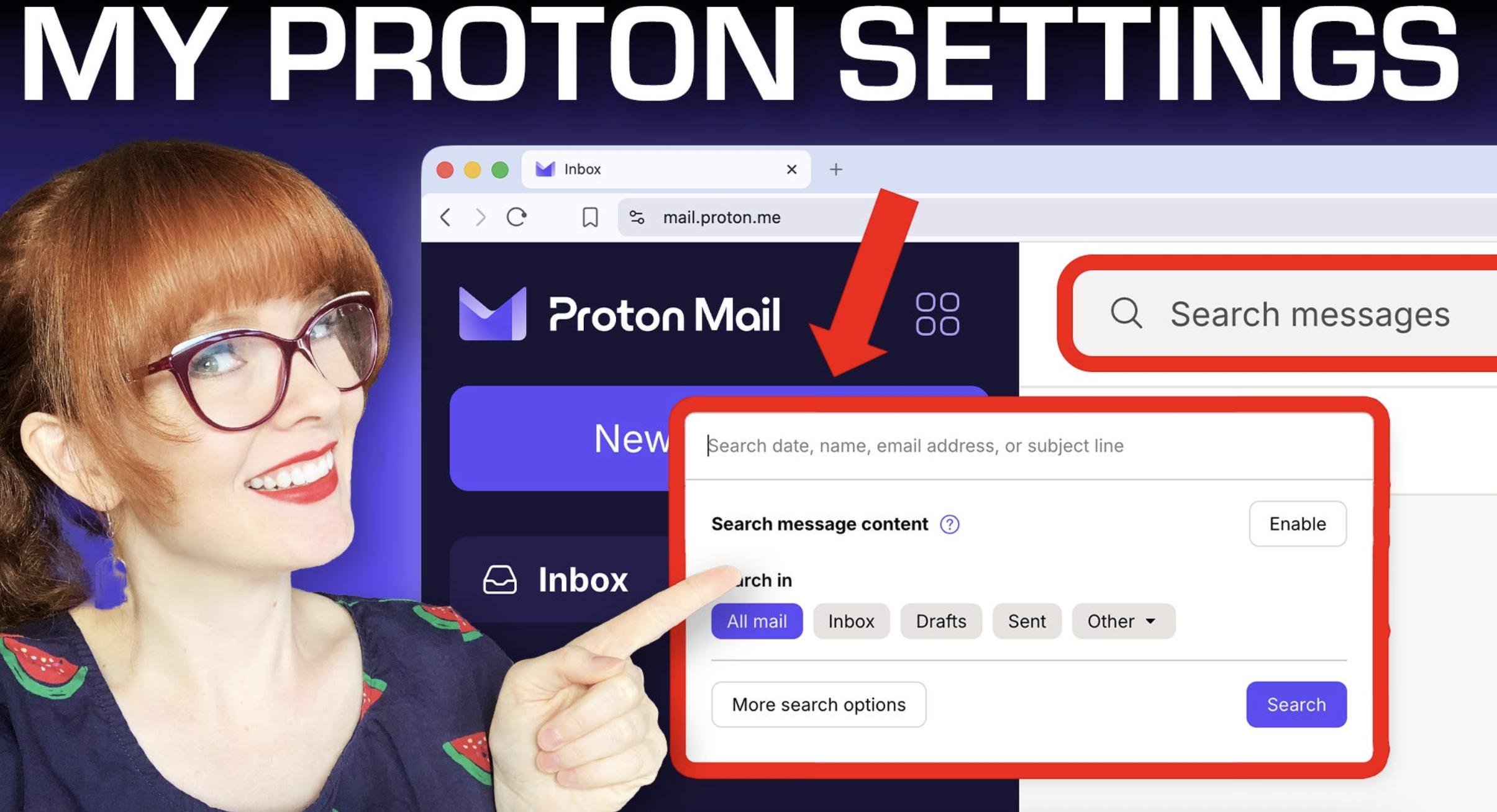
Many people think that Proton Mail search is broken. But the real reason you can’t find the things that you’re looking for is because Proton can’t read your encrypted inbox -- and you haven’t toggled on the privacy-first setting that would allow you to locally search your emails.
It’s a simple fix that you might not have even known existed.
In this article, I’ll explain how to turn that on. I’ll also explain the difference between Proton search on desktop and on mobile, and I’ll go through a bunch of other Proton Mail privacy settings that I change in my own account. Sometimes when you use new privacy tools, there are lots of little tips that many people take for granted, that a new user doesn’t know about. So hopefully this article is a good starting point if you’re about to take the plunge and move away from your old email to something more private. Video tutorial below if preferred:
Search
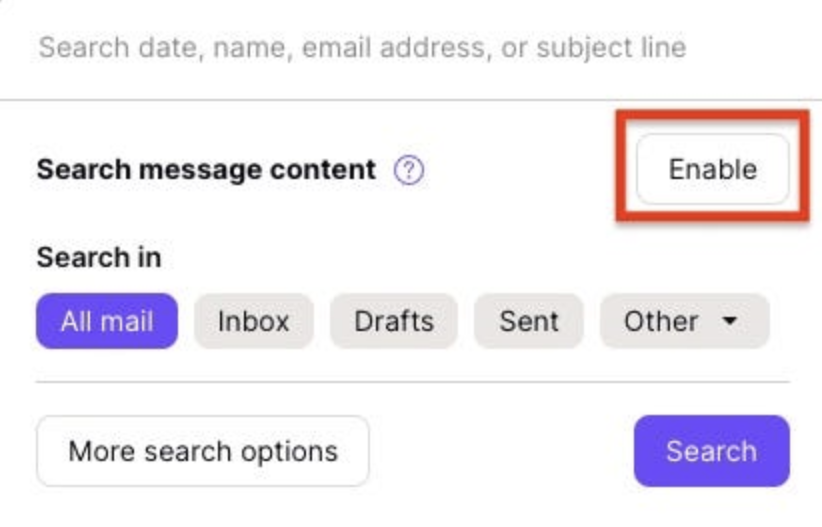
When you search for an email in Proton Mail you may find that it’s not super effective, and is not actually finding the keywords you’re searching for. This is because Proton encrypts their database with zero access encryption, meaning that they can’t get access to the contents of your email, or search those contents on their servers. The only thing that they can search are things like the to and from field, and the subject line.
Here is the setting you need to change so that your search feature actually works properly: In the web app, when you go to the search bar, you must enable “Search message content”. What this does is download a local index of your emails which is stored in your browser’s web storage, and this index allows you to search the contents of your messages locally.
How it works behind the scenes:
Each message is fetched from the server. Then Proton locally decrypts the message using your private key. The plaintext of the message is cleaned of any HTML markups, as those aren’t relevant to the search functionality. Then, because Proton doesn’t want to leave a giant pile of readable email sitting on your computer, it locks that local search index again, this time with faster symmetric encryption, using your browser’s own encryption tools. The encrypted search index is then stored locally in your browser’s IndexedDB database.
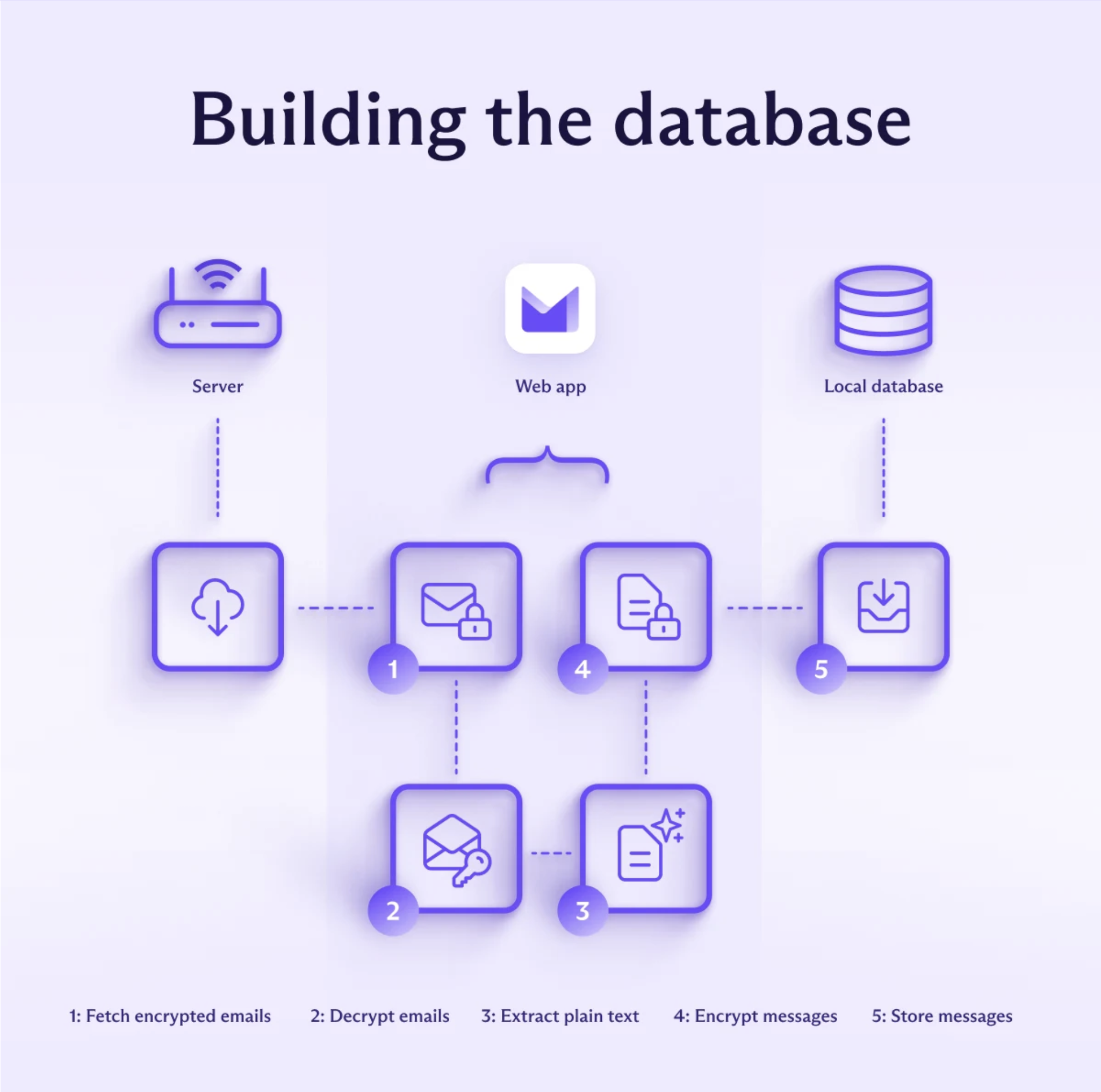
Now when you perform a content search, Proton searches this local index, and the search is run on your own machine instead of Proton’s servers. Creating this index can take quite a while, depending on how large your inbox is, but once it’s set up, it will keep updating the index automatically.
The way they have this set up, your query isn’t leaking when searching, the set of results isn’t leaked either, the server can’t learn the contents of your emails, and if your local device is compromised after it’s shut down, an attacker shouldn’t be able to learn the contents or metadata of emails.
If you ever want to delete this index from your browser, you can go to settings, and click “clear browsing data” at the very bottom.
Mobile search note:
Now it’s worth noting that on mobile, you can’t yet search message content, only the subject and to and from fields. So if you’re hunting for something specific, you’d best use your computer.
Import
Next is my favorite toggle of all. The import button. Some people don’t want to switch email providers because it seems too daunting. In Proton there is a single button that you can click to import your entire email history, contact list, and calendar from Google, Outlook, or whatever else you’re using.
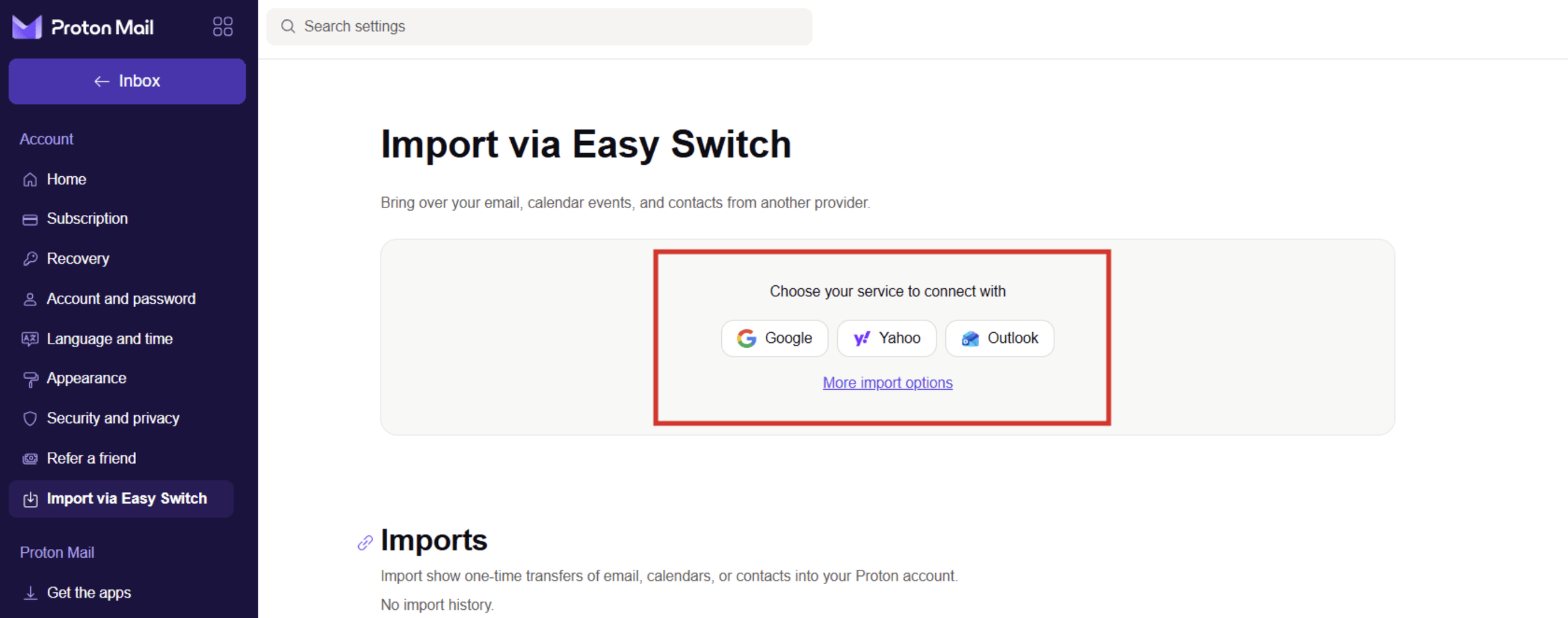
This button makes switching emails crazy easy. And Proton even helps you set up auto forwarding, so that everything from your existing email gets sent straight to your new Proton inbox.
Image Privacy Settings
Now, let’s lock down Proton’s image privacy settings. Images in email can leak more than people realize. To show remote images, for example, your email app has to contact outside servers and download those images from there. That request can leak information like when you opened the email, your IP address, or device information. That’s how tracking pixels work, and you might not even be able to see these tiny images in your email.
If you go to settings, and then “all settings”. Then to email privacy, you can see that an option labelled “Block email tracking” is on by default.
This blocks known tracking pixels, and Proton will preload other remote images through its own proxy, using a generic IP address and geolocation.
When this protection is on, automatically loading remote images is much safer.
But nevertheless I like to turn off the automatic loading of remote images.
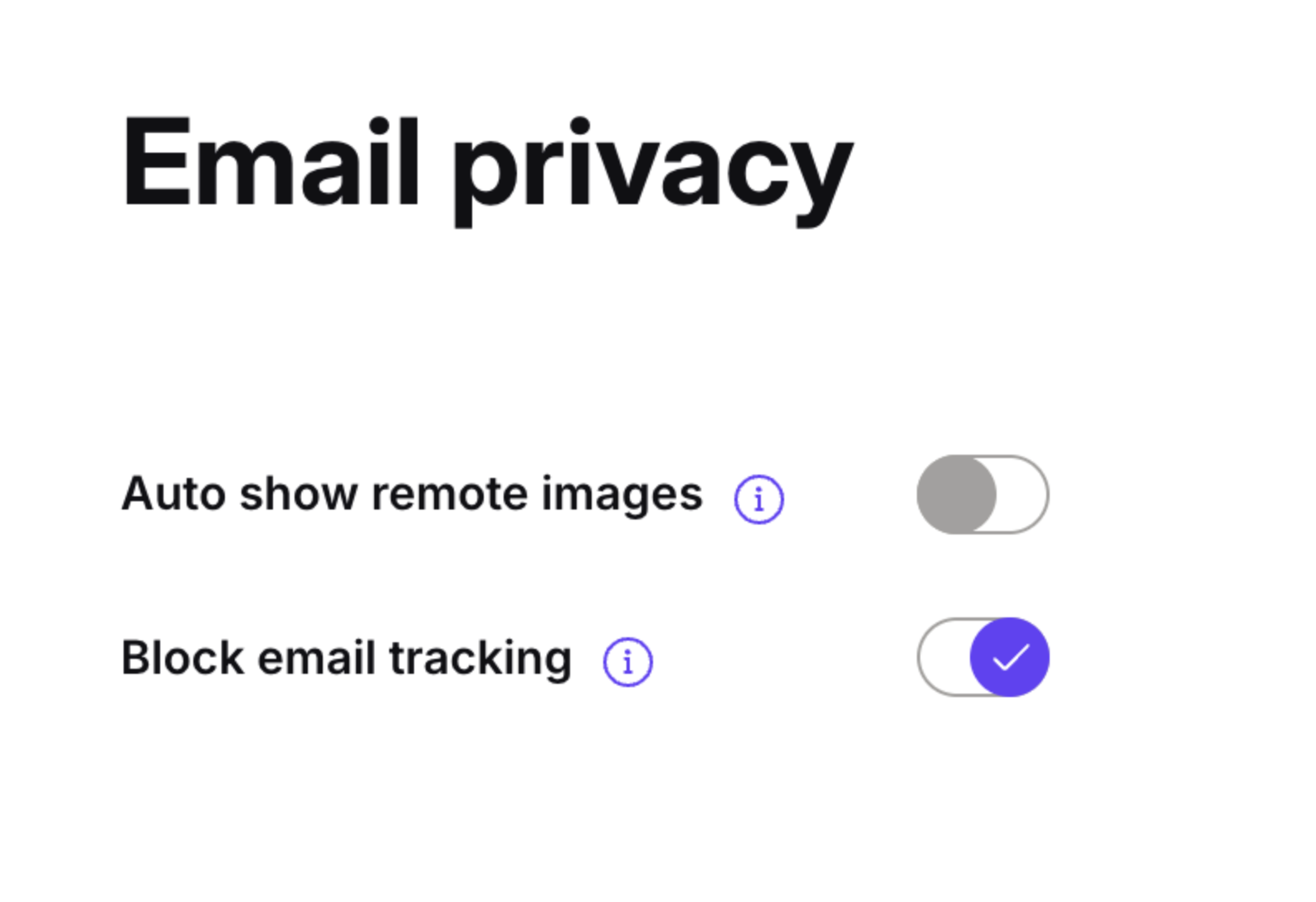
So in that same section, I disable “Auto show remote images”. This makes image loading a deliberate choice instead of being automatic.
Now go to “messages and composing” and disable “Auto show embedded images”.
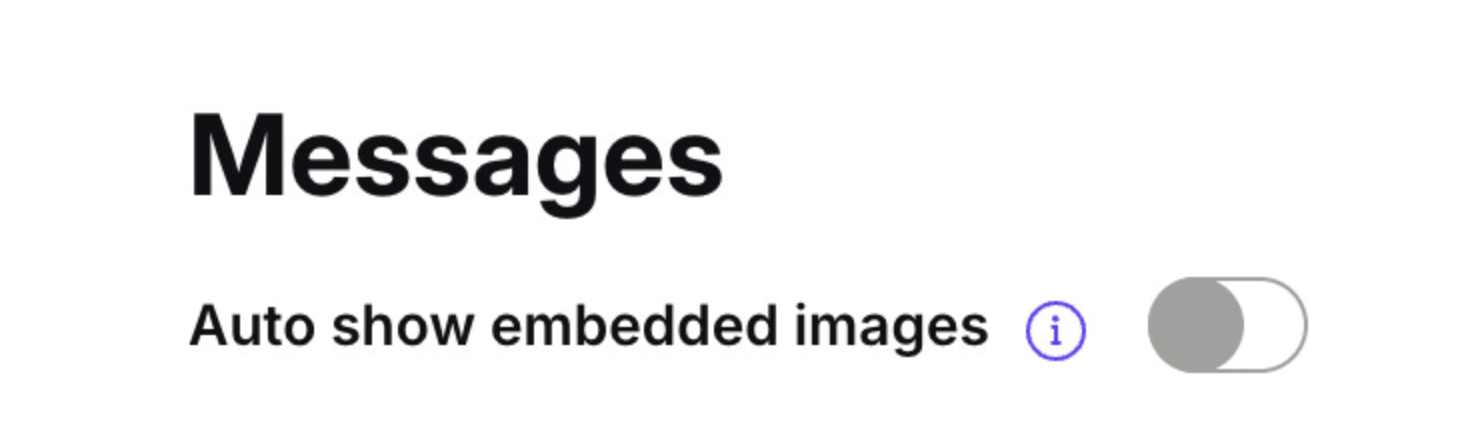
Embedded images are usually included inside the email itself rather than pulled from an outside server, but disabling auto-load still gives you more control over what renders when you open a message. It’s a more cautious setting for people who don’t want their inbox automatically displaying every image someone sends them.
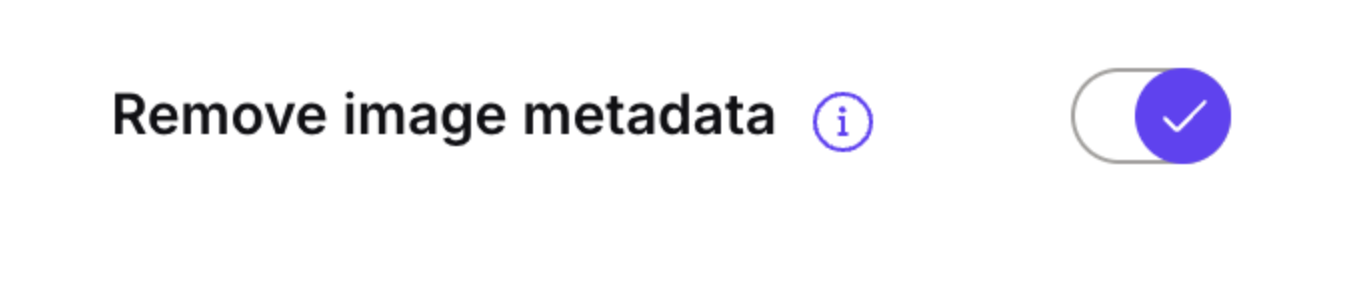
In the same “Message and composing” section, under composing, enable “Remove image metadata”. Photos can carry hidden EXIF metadata, including location, timestamps, and device details, which can reveal far more than the picture itself. Enabling metadata removal helps strip this digital exhaust before you send image attachments.
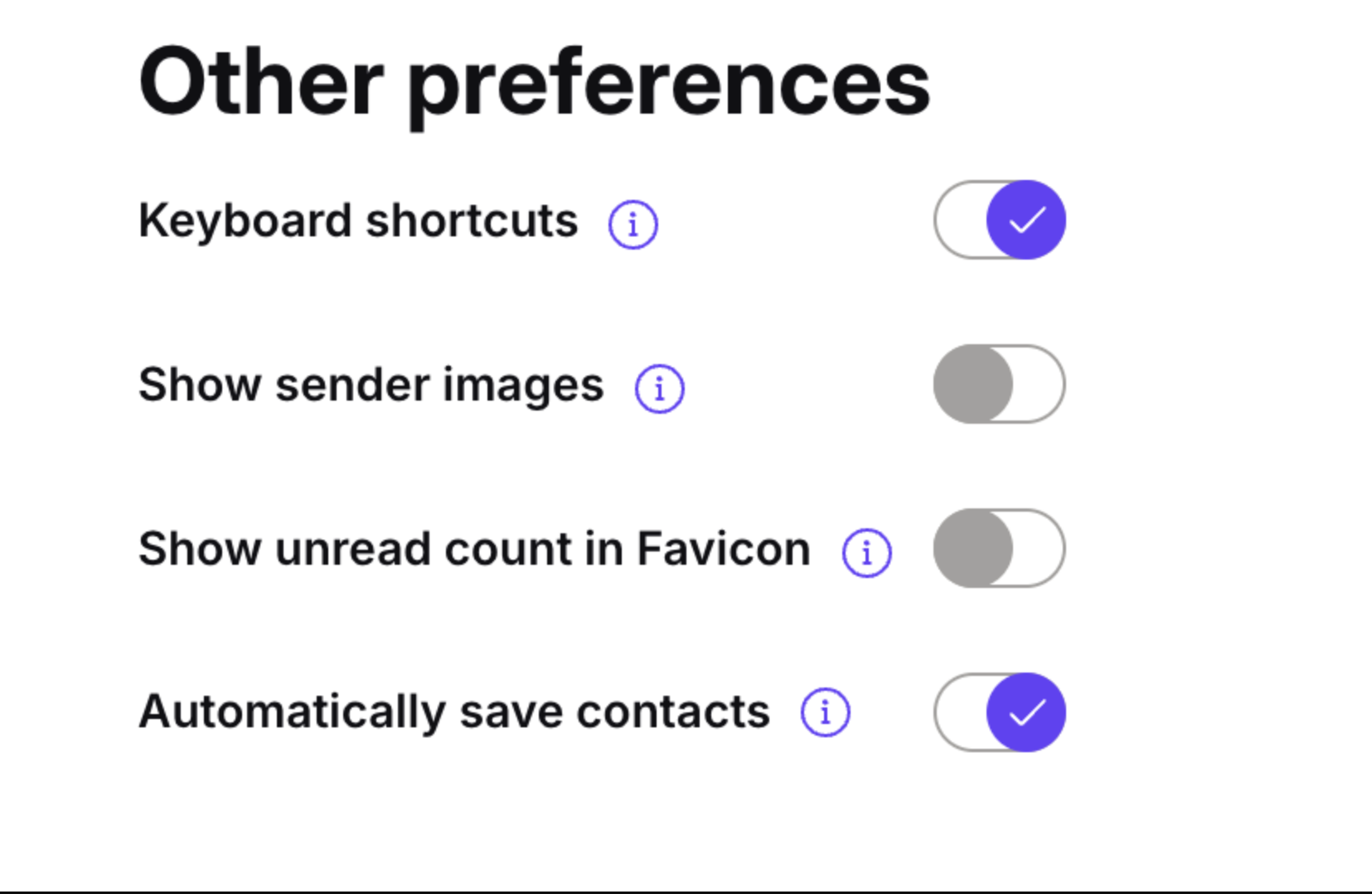
Next under “Other preferences” disable “Show sender images”. Sender images are the little brand icons next to messages, and Proton fetches these in a privacy-preserving way through anonymous server requests. But I still disable them because it reduces unnecessary visual noise.
Other Settings
Under account and password, click Add 2FA to your Proton Mail account. This adds a second lock to your account, so even if someone steals your password, they still need your authenticator app or security key to get in. I recommend using a security key as your 2FA option, and Proton will ask you to add an authenticator app as a backup.
Then under Security and privacy, turn off “Collect usage diagnostics” and “Send crash reports”. Usage diagnostics are anonymous, and some Proton documentation describes crash reports as anonymous too, but I still turn both off because they’re extra telemetry leaving my device. This is a personal preference: you may want to help Proton fix bugs, or you may prefer the more data-minimal setting.
Under messages and composing I like to turn on Proton Scribe writing assistant. Scribe helps proofread or adjust your emails, which I find useful, especially if I don’t want to copy sensitive emails into some random AI tool. Instead Proton is privacy-first, and even allows you to run it entirely on your device.
To do this, toggle on “Run on device”. This makes Scribe download and run a local language model on your own device, so your prompt never leaves your computer. One tradeoff to be aware of is that local mode has hardware requirements and may be slower.
Under Security and privacy I also turn on “Enable Dark Web Monitoring”. This alerts you if personal information tied to your Proton address or Proton Pass aliases shows up in breach data or dark web sources. It’s an early-warning system so you can change passwords, rotate aliases, and limit the damage before things get uglier.
And when I check my emails, I default to always checking the “All Mail” tab on the left instead of only looking in the inbox. This also shows me messages that landed in other folders in my account, as well as sent messages, so that I don’t miss anything.
Quick warning:
Not every Proton setting syncs across devices. Account-level protections like 2FA and Dark Web Monitoring follow your account, but local settings like content search and tracker protection may need to be checked on each device. So if you access your email via the phone app for example, you’ll want to check that you have the right settings on there also.
Final Thoughts
Proton Mail is already a huge step up in privacy from most mainstream email providers, and hopefully these settings will be helpful for you when you switch over.
Proton is just one of the privacy-preserving email providers out there, so if you have a favorite email provider that we should check out in our upcoming video comparing the most private email options, let us know in the comments.
Yours In Privacy,
Naomi
Consider supporting our nonprofit so that we can fund more research into the surveillance baked into our everyday tech. We want to educate as many people as possible about what’s going on, and help write a better future. Visit LudlowInstitute.org/donate to set up a monthly, tax-deductible donation.
NBTV. Because Privacy Matters.